How to Remove Backgrounds from Pictures and Images (5 AI Methods)

TL;DR
- Explains how AI uses semantic segmentation to identify and isolate subjects.
- Compares five distinct workflows from browser tools to industrial software.
- Details the evolution from manual Pen Tool paths to instant AI masks.
- Provides technical insights on why AI succeeds or fails with specific images.
- Guides users on choosing the right tool for different project scales.
If you’ve been in the design game for more than a decade, you remember the pain. The Pen Tool. The 400% zoom. The sheer, repetitive misery of clicking node after node around a subject's frizzy hair, praying you didn't just accidentally cut off an ear. It was a digital form of torture that took twenty minutes per photo.
That era is dead.
Today, Artificial Intelligence has turned that twenty-minute slog into a five-second reflex. We aren't just talking about professional designers with expensive software, either. Whether you’re running a free browser tool, tapping a hidden button on your iPhone, or batch-processing an entire e-commerce catalog, modern algorithms can isolate subjects with terrifying accuracy. They spit out transparent PNGs instantly, ready for your marketing deck, your Shopify store, or let’s be honest—your memes.
But here’s the catch: not all "magic buttons" are created equal. The method you use for a quick Instagram Story shouldn't be the same one you use for a large-format print ad. Below, we break down the five distinct workflows for AI background removal, ranging from "free and fast" to "industrial strength."
How Does AI Background Removal Actually Work?
Before you start clicking, it helps to know what the machine is thinking. It isn't magic; it’s semantic segmentation.
Old-school software—the "Magic Wand" era—relied on contrast. It looked for edges where a dark pixel met a light pixel. This worked beautifully if you were photographing a black box on a white table. But if you had a blonde model standing against a beige wall? The software would fail miserably, unable to tell where the hair ended and the wall began.
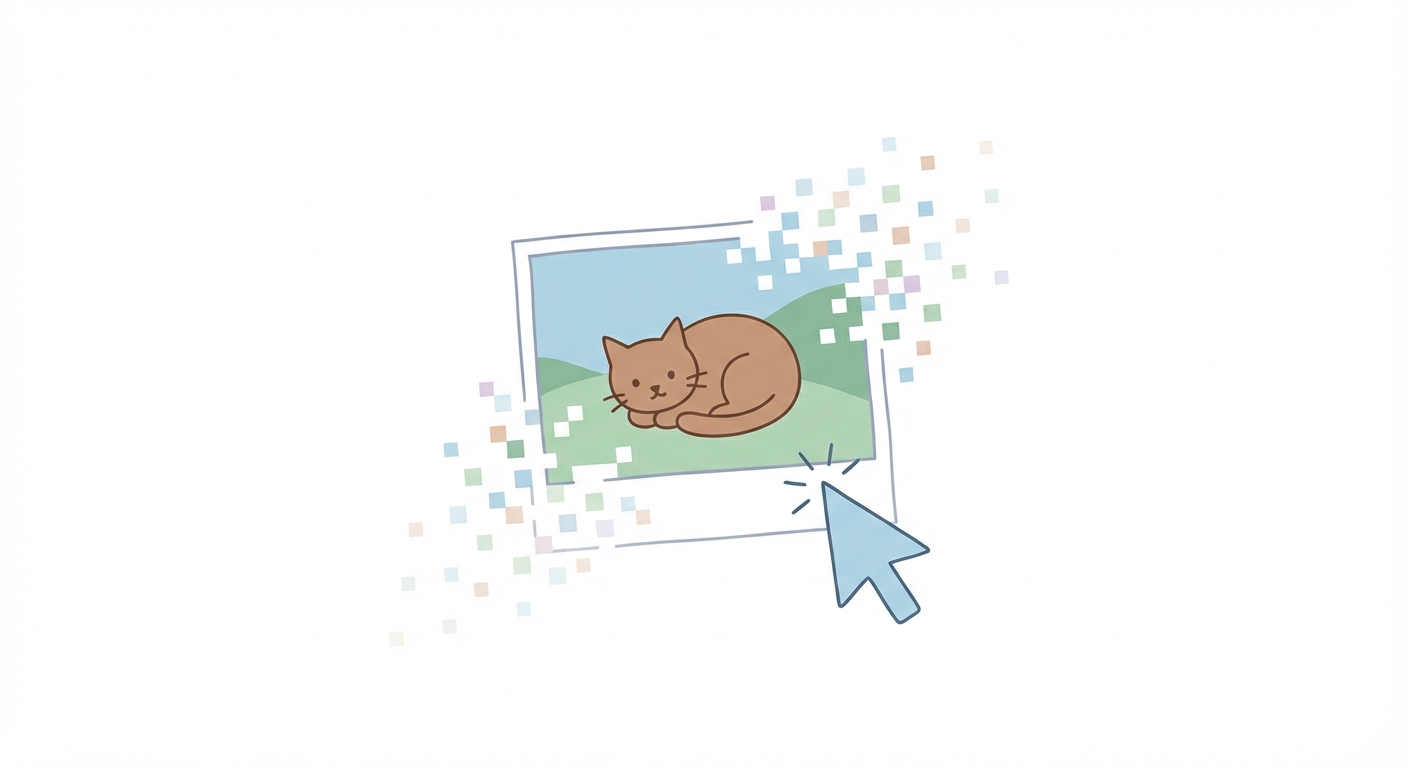
Modern AI doesn't just look for lines; it understands concepts. Trained on millions of image pairs, the model actually recognizes "Dog," "Car," or "Coffee Cup."
Once it identifies the object, it creates a binary mask:
- 1 (Keep): The subject.
- 0 (Discard): Everything else.
This distinction is vital. It explains why AI sometimes fails on abstract objects. If the computer doesn't know what it's looking at (say, a weirdly shaped modern art sculpture), it won't know what to keep, no matter how sharp the edges are.
Method 1: The "One-Click" Browser Tools (Best for Speed)
This is for the "I need it five minutes ago" crowd. You don't want to install software. You don't want to learn an interface. You just want the background gone.
Tools like Remove.bg and Adobe Express own this space. The workflow is brutally simple: drag your image into the browser, wait for the screen to blink, and download your PNG. No manual masking. No fine-tuning.
The Trade-off: Speed creates compromise. The biggest issue with free-tier browser tools is resolution crushing. If you upload a crisp, 4K photograph, many of these tools will hand you back a fuzzy 1080p image to save on server costs. For a Twitter post? Totally fine. For a website header or a printed flyer? It's going to look like a pixelated disaster.
If you need a reliable option that doesn't feel like a sketchy download site, Adobe Express offers one of the cleanest free browser-based tools. It tends to retain better edge detail than the "freemium" competitors that bombard you with upgrade prompts.
Method 2: Mobile OS Built-in Features (Best for Casual Use)
Stop downloading ad-filled garbage from the App Store. Seriously. Both Apple and Samsung have effectively killed the market for third-party background remover apps by baking the tech directly into your phone. Most people have this superpower sitting in their pocket and have no idea it exists.
How to use iOS Visual Look Up
If you’re rocking iOS 16 or later, Apple’s neural engine handles this natively in the Photos app. It feels incredibly tactile.
- Open a photo.
- Long press on the subject (the person, dog, or slice of pizza).
- Wait for the glowing line to trace the edge of the subject.
- Tap "Copy" to paste it directly into an Instagram Story or text message, or "Share" to save it as a file.
How to use Samsung Gallery Object Eraser
Samsung takes a slightly different approach, treating it as an editing tool rather than a "sticker" creator.
- Open the photo in your Gallery.
- Tap the Pencil (Edit) icon.
- Select the Object Eraser tool.
- Tap the background area you want gone, or tap the subject to isolate it.

Method 3: Professional Desktop Software (Best for Quality)
When the "one-click" tools fail, they usually fail on the tricky stuff: wispy hair, animal fur, or semi-transparent objects like bridal veils or glass. This is where professional software like Adobe Photoshop becomes non-negotiable.
The modern Photoshop workflow has abandoned the clumsy tools of the 2000s. Now, you use the Contextual Task Bar. Import an image, and a small floating bar appears. Click "Remove Background," and the AI runs locally (or via the cloud for complex renders) to generate a layer mask.
Why this wins: It creates a non-destructive mask. Browser tools delete pixels permanently. Once they're gone, they're gone. Photoshop just hides them. If the AI accidentally cuts off the tip of a finger or a stray hair, you can grab a white brush and paint it back in. You have total control over the edge detection radius, allowing you to refine those "wispy" edges that confuse simpler AI models.
If you want to move beyond the automatic settings and master these manual refinements, check out our deep dive on Photoshop tutorials for advanced masking techniques.
Method 4: Bulk Removal for E-Commerce (Best for Catalogs)
If you are a reseller on Poshmark, eBay, or managing a Shopify store, Method 1 and 2 are useless to you. You don't have time to long-press on 50 different photos of sneakers. You need industrial speed.
Tools like Photoroom, Pixelcut, or Photoshop Actions are designed for the hustle. You point the software at a folder containing 100 raw images, set the command to "Remove Background + Save as PNG," and walk away to make coffee.
The efficiency gap is massive. Manually clipping a 50-item catalog would take an experienced editor nearly an hour. AI batching does it in under two minutes.
Method 5: Generative Fill (Best for Creative Context)
Sometimes, removing the background is only half the battle. You don't just want a white void; you want a better background.
This is where Generative AI (like Photoshop Generative Fill or Canva Magic Edit) steps in. Instead of just deleting the messy kitchen table behind your product, you can type a prompt: "Marble countertop with morning sunlight."
Here is the game-changer: The AI doesn't just paste your product onto a stock photo. It generates new pixels that account for lighting and perspective. It will add realistic shadows under your product that match the new environment. That used to take hours of compositing work to fake convincingly; now it takes a text prompt. For more on how to leverage these creative engines, read our review of the top AI image generation tools.
Which AI Method Should You Choose?
Still unsure which workflow fits your project? Use this matrix. Don't pay for a subscription if you only need one meme, and don't rely on a free browser tool if you're printing a billboard.

Tips for Getting the Cleanest Cutouts
Even the smartest AI can be baffled by a bad photo. If you want pristine edges without manual cleanup, you need to help the algorithm out before you even upload the file. Garbage in, garbage out.
- Contrast is King: AI looks for differences. If you wear a black t-shirt against a dark grey wall, the AI will likely decapitate you. Shoot against a wall that is the opposite color of your subject.
- Watch the Shadows: Hard shadows are the enemy. If a strong shadow falls across the subject's shoulder, the AI might interpret that shadow as a separate object and cut it out. Soft, diffuse lighting helps the AI see the true edges.
- The "Final Boss" (Hair): If you are photographing a model with curly or frizzy hair, ensure the background is a solid, single color. Complex wallpaper patterns behind hair are almost impossible for even the best AI to separate cleanly.
Frequently Asked Questions (FAQ)
Q1: Does removing the background lower image quality? It depends on the tool. Free browser tools often lower the resolution (pixel count) to save server costs. Professional tools like Photoshop or paid tiers of Photoroom will maintain the original resolution and DPI of your image.
Q2: What is the best free AI background remover? For desktop users, Adobe Express is excellent. For mobile users, the built-in iOS Visual Look Up is superior to almost any free third-party app.
Q3: Can AI remove backgrounds from video? Yes, but it requires different tools. Apps like CapCut and Unscreen use "rotoscoping" AI to remove backgrounds from moving subjects, though the edge quality is usually rougher than with still images.
Q4: Which format supports transparent backgrounds, JPG or PNG? This is the #1 mistake beginners make. JPG does not support transparency; it will fill the empty space with white. You must save your file as a PNG (or WebP/TIFF) to keep the background transparent.