Defining Color Quantization in Image Processing

TL;DR
- This article covers the basics of color quantization and why it matters for modern photographers. We look at how reducing color palettes impacts image quality, file size, and the way ai tools process your shots. You will learn how to keep your photos looking sharp while optimizing them for web and professional print workflows.
What is color quantization anyway?
Ever wondered how a high-res photo of a sunset—with its millions of tiny color shifts—somehow fits into a tiny web banner without looking like a blocky mess? That's basically the magic of color quantization.
It’s the technical process of reducing the number of distinct colors in an image while trying to keep the visual "vibe" as close to the original as possible. Most raw images actually use 12-bit or 14-bit color depths per channel, which translates to billions of possible colors, but for standard display, we usually talk about 24-bit color. This 24-bit standard allocates 8 bits each to the Red, Green, and Blue channels, allowing for about 16.7 million combinations. Quantization is when we crush that down even further, often to just 256 colors.
Computers are great at math but terrible at "seeing" like we do. To save space, they group similar pixels together.
- Breaking down the millions: Quantization maps those millions of 24-bit colors to a much smaller "palette" or index.
- Data simplification: In industries like healthcare, reducing color depth in non-critical or "preview" scans can speed up remote diagnostics by shrinking file sizes. However, for the actual primary diagnostic scans, doctors stick to high 10-bit or 12-bit depths to ensure no tiny detail is lost. (Digital Pathology Displays Under Pressure - PMC - NIH)
- Original vs. Quantized: The original has smooth gradients; the quantized version uses a lookup table (LUT) to represent those same areas with fewer bits.

When you limit the palette, you aren't just losing colors—you're changing how the file is indexed. Instead of every pixel carrying its own heavy color data, it just points to a number in a small list.
According to research on image compression by Adobe, optimizing asset delivery through techniques like quantization can significantly reduce bandwidth costs for high-traffic retail sites. (Best practices for optimizing the quality of your images)
In e-commerce, this is huge. If a site loads 0.5 seconds faster because the product images are quantized properly, conversion rates usually go up. It’s always a trade-off, though. Push it too far, and you get "banding" in the shadows.
The technical side of picking colors
So, you've got a high-depth image with millions of colors, but you need to squeeze it into a tiny 8-bit indexed palette (like a GIF). How does the computer actually decide which colors stay and which ones get the boot? It’s not just a random guess; it’s about math and clustering.
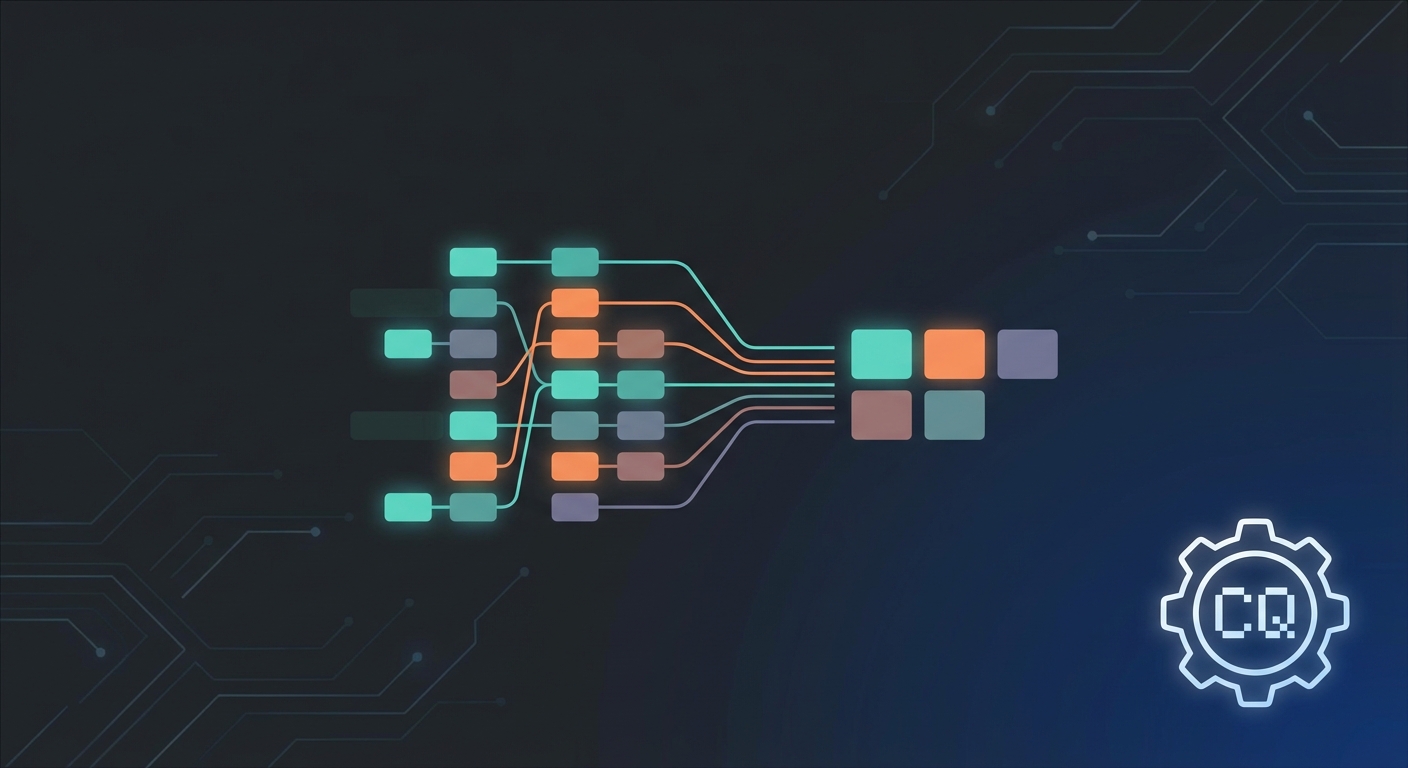
The Median Cut algorithm is a classic. It treats all your image colors like a big cloud in 3D space (Red, Green, Blue axes). It splits that cloud into boxes until it has as many boxes as your target palette size, then picks the average color of each box. It's fast, but sometimes it misses those subtle pops of color that make an image feel "alive."
Then there's K-means clustering, which is more of an optimization beast. It starts with random points and keeps shifting them until they’re right in the "center" of the most common color groups. According to a technical deep-dive by Cloudinary (2023), using advanced clustering can reduce image weight by up to 70% without humans even noticing the difference.
- Median Cut: Great for speed; good for general web assets.
- K-means: High precision; perfect for product photography where color accuracy is everything.
- Octree: This one uses a tree structure to represent the color space, where each branch splits into eight nodes to quickly sort and average colors based on their bit-depth.
If you've ever seen those ugly, jagged lines in a photo of a clear blue sky, you’ve seen banding. This happens when the jump between two colors in your limited palette is too big for the eye to ignore. To fix this, we use dithering. Dithering basically mixes pixels from the available palette in a "noisy" pattern to trick your brain into seeing a color that isn't actually there. It’s like a visual illusion that smooths out those harsh transitions.

How ai and quantization work together
So, we’ve talked about the math of picking colors, but honestly, even the best k-means clustering can leave an image looking a bit "thin" if you push the compression too hard. That is where ai comes in to save the day by basically guessing what should have been there in the first place.
When you quantize an image, you're throwing away data, period. But modern ai models—the kind you find in tools like Topaz Photo AI or Adobe Enhance—don't just look at the pixels that are left; they understand the context of the photo. If a gradient in an old, low-bitrate photo of a face looks blocky, the ai knows what skin is supposed to look like and "fills in" those missing transitions.
- Neural interpolation: Instead of just stretching pixels, ai analyzes textures to recreate smooth paths between quantized colors.
- Restoration workflows: For pros dealing with archives, ai can take an 8-bit indexed image and re-expand it to a 16-bit workspace by predicting the lost luminance values.
- Upscaling without the "crunch": Traditional upscaling makes quantization artifacts (like those weird squares) bigger. AI-driven upscaling, however, treats those artifacts as noise to be filtered out while it builds new high-res detail.

One thing that really trips up amateur editors is trying to use a background remover on a heavily quantized image. If the color palette is too small, the "edge" of a person's hair might be the exact same color index as the wall behind them. This is a nightmare for simple algorithms.
AI background removers are trained on millions of images, so they rely more on semantic segmentation (knowing what a "person" is) than just looking for color shifts. This helps "recover" the edges that quantization blurred by understanding where the object ends and the background begins. According to a technical report by Pexels regarding visual quality, using ai to handle these complex edges can save designers hours of manual masking, especially when the original source is a compressed jpeg.
- Edge refinement: AI can "see" the difference between a dark blue shirt and a black background, even if the quantization process lumped them into the same dark bucket.
- Artifact cleanup: After the background is gone, ai often has to "re-paint" the edges of the subject to remove any leftover color "fuzz" from the old palette.
Practical tips for your photography workflow
So, you’ve spent hours nailing the perfect shot, but then you export it and the sky looks like a staircase of ugly blue stripes. It’s frustrating, right? Understanding how to handle your files at the end of the pipeline is just as important as the shooting itself.
If you want to keep your colors intact, you gotta start with RAW. Working in a 16-bit workspace gives you trillions of color possibilities, which sounds overkill until you actually try to push a slider in post-processing.
- RAW vs JPEG: Standard jpegs are 8-bit per channel, which is different from the 8-bit indexed color we use for GIFs. While jpegs have millions of colors, they've still been quantized and compressed by the camera. If you're doing heavy color grading, always stick to RAW to avoid "crunchy" artifacts.
- The 16-bit safety net: Even if the final destination is a smartphone screen, editing in 16-bit prevents math errors from accumulating. It’s like having a bigger canvas so you don't accidentally step off the edge.
- Exporting for Social: Most platforms like instagram or facebook are going to crush your file anyway. To beat them at their own game, export as an sRGB jpeg with a bit of "output sharpening" to mask the softening that happens during their compression.
Sometimes you're stuck with a file that’s already been quantized too much. When you see that nasty banding in a gradient, one of the oldest tricks in the book is actually adding noise. By adding a 1-2% grain layer, you’re basically manual-dithering. The noise breaks up the solid blocks of color, making the transition look smooth to the human eye even if the underlying data is limited.

In design automation, many pros are now using ai-driven tools to upsample old digital archives. As mentioned earlier, ai can predict those missing middle-tones that were lost years ago.
According to a 2023 industry report by Keypoint Intelligence, businesses adopting ai-enhanced imaging workflows see a 30% reduction in manual retouching time, allowing for faster turnarounds in high-volume retail environments.
Honestly, just keep your masters in high bit-depth and only quantize at the very last second. Your future self will thank you when you don't have to fix a "lego-sky" in a portfolio piece.